 Statico
Move a Wix site to Astro: What carries over
See which pages, forms, and SEO settings transfer when moving off Wix to Astro, what requires manual rebuilding, and how to test a live preview first.
When you move a Wix site to Astro, you can keep your own text, available images, domain, and page URLs. You can also recreate the design. But you can’t download a finished Wix project, upload it to another host, and keep editing it the same way.
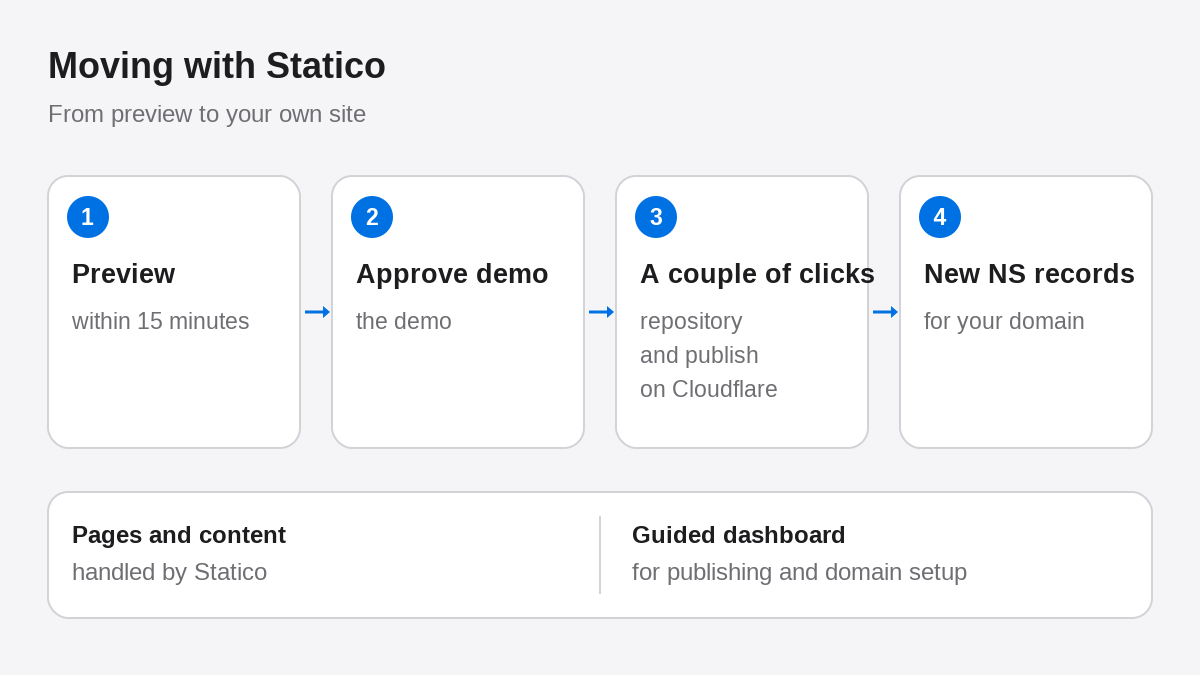
With Statico, you can get a free live preview of your site on Astro in 15 minutes or less. A small-site migration can be finalized within a day. We handle the pages and content. You approve the demo, click a couple of buttons to move the site to your own automatically created repository and publish it on Cloudflare, then update your domain’s nameservers. A guided wizard walks you through those steps in the dashboard.
Technically, this is a recreation of your site, not an export of your Wix project. Wix explains that its sites depend on Wix infrastructure and don’t support external hosting. Your own content, however, remains yours.
The rest of this article covers a manual migration, in case you want to do everything yourself or work with a developer. These aren’t steps you need to complete before ordering from us. You don’t need to collect text from public pages or rebuild every page for Statico.
What carries over from Wix to Astro?
It helps to think of a website in three parts: content, design, and functionality. Each one needs a different approach during a migration.
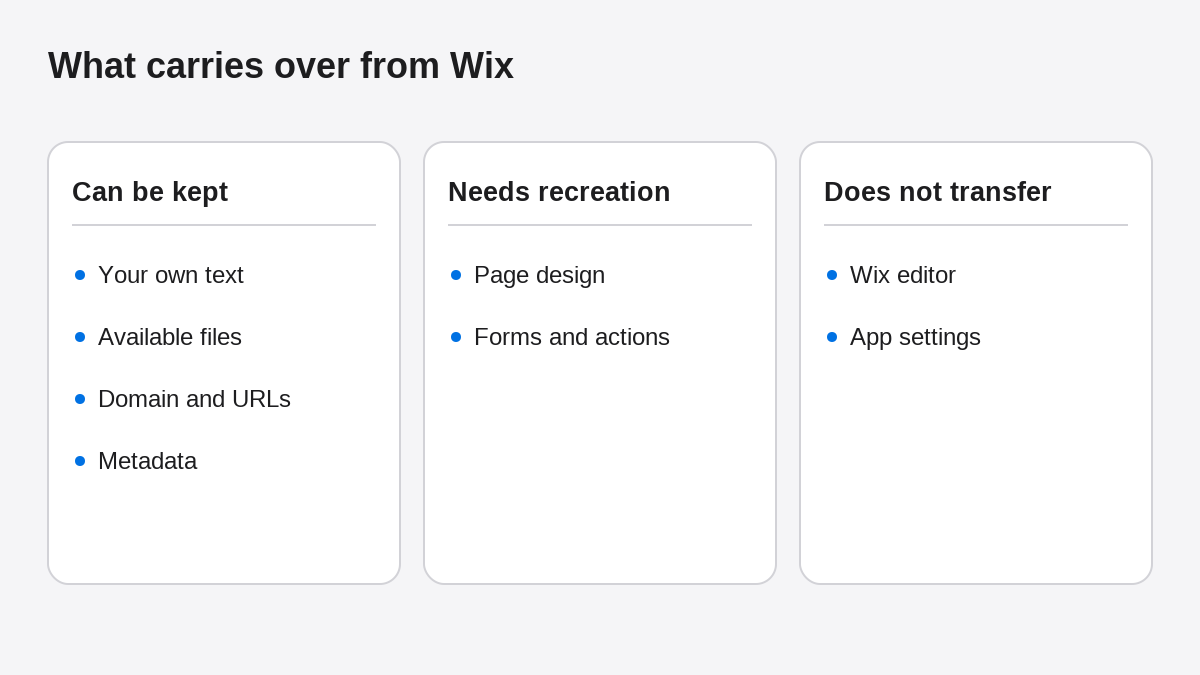
Your site can stay recognizable to visitors, but its underlying structure and editing workflow will change.
| Part of the site | What happens during a migration |
|---|---|
| Your own text | It can be carried over unchanged. |
| Photos and documents you uploaded | They can be reused if the files are available and you have the rights to use them. |
| Page design | It gets recreated in a new layout. The editable Wix design does not transfer to Astro. |
| Your custom domain | It can stay the same and be connected to the new site. |
| Page URLs, titles, and descriptions | They can be kept. Plan for them during the migration rather than expecting a Wix export to preserve them. |
| Forms, galleries, buttons, and other actions | They need to be recreated or connected again. Wix settings don’t transfer with them. |
| The Wix editor and app settings | They don’t become part of an independent Astro project. |
For example, a services page might keep its photo, text, URL, and layout. But the inquiry form below the text will be built differently. It can look similar, but its email delivery needs to be set up separately.
For a manual migration, start with access and materials
You don’t need to start by choosing an Astro template. Your published pages already show the content and design you’ll need to recreate. First, check that you can access everything you need and that you’ll be able to connect your domain later.
Make sure you can access your Wix account, domain settings, and the email address used for account recovery. If a contractor originally built the site, find out whose account the domain is registered under and who gets renewal notices. Being able to open the site in a browser doesn’t mean you can change its settings.
Make a separate note of what you currently pay for: the site, domain, email, and apps. That will help you avoid canceling a service you still need when you cancel one you no longer want.
Save the materials you can access, and gather anything that isn’t on public pages or needs to be replaced:
- Original photos, if the site only has smaller versions
- A current logo, price list, and other documents
- New contact details or copy that hasn’t been published yet
- A list of hidden pages you still need after the migration
- Details of features that should work differently
Wix lets you download available files from the Media Manager; it doesn’t export the whole site. Don’t assume you can download every asset in one archive.
Be especially careful with stock photos, video, and fonts. The fact that an asset is available inside Wix doesn’t by itself mean you can use it outside the platform. Check the specific license or find a replacement.
If you’ve lost access to your account, public pages can still help you reconstruct the text and design. But hidden pages, original image files, and inquiry history may no longer be available.
Make a page list, not just a list of menu items
The main menu rarely shows every page on a site. A privacy policy might only be linked in the footer, a thank-you page might appear after a form submission, and an ad landing page might not be linked anywhere else.
For a small brochure site, a simple spreadsheet is enough. For each page you need, record:
- The old URL and the planned new URL
- The title and description used by search engines
- Content to keep or replace
- Actions visitors can take on the page
- The result of checking the new version
For example, noting that the text on /services has been moved isn’t enough. The page might also have a call button, a link to a price list, and a service-selection form. Check each one. Otherwise, you might approve the site based on how it looks and miss a form that doesn’t work.
Review the menu, footer, links within text, and URLs used in ads. If the site has versions in other languages, account for each one separately. This is especially important for pages that only the person who ran the ad campaign remembers.
Decide what to do with outdated content while you’re at it. A migration doesn’t mean you have to keep a long-expired promotion. Record the decision so it doesn’t get lost in a message thread.
If a page’s URL will change, plan a redirect from the old address to the new one. For more on preserving URLs and metadata, see our guide to SEO and redirects during a website platform migration.
How to recreate Wix pages manually in Astro
Astro is a tool for building websites from code, text, and other files. In its static mode, it creates finished pages ahead of time, ready to be hosted. The new site no longer needs the Wix editor or infrastructure.
For a manual migration, you’ll need to create a new project, build pages that match the Wix site, and add the content. If you don’t work with HTML and CSS, this is usually where you’ll need a developer. Astro doesn’t turn your old site’s address into a finished project by itself.
Start with a representative page: one with a header, main text, an image, a button, and a footer. Save screenshots of the old version on a computer and a phone for reference. The first recreated page will show whether the styling, content width, and small-screen layout are working. Then move on to the rest.
The new project doesn’t have to mirror Wix internally. Shared elements, such as the menu and footer, can be reusable components. Change them once, and the update appears on every page that uses them. For groups of similar pages, Astro has content collections, which can hold content used with a shared template. A unique homepage might keep its text and layout together.
The project’s structure determines where you’ll edit a service description and how you’ll add the next news item. If a developer is building it, ask them to show you how your pages are organized.
Test features separately from the design. Submit each form and check that the inquiry reaches the right person and the visitor sees a clear result.
If your site has online booking, customer accounts, or payments, evaluate those separately. Moving the regular pages doesn’t transfer Wix business features, settings, data, or automated messages with them.
Check the new version before connecting your domain
First, publish the site you’ve built at a temporary address while the Wix site is still live. A test site is more useful than screenshots because you can check links, menus, and visitor actions. Open both versions side by side and work through your page list instead of relying on your impression of the homepage.
For each page, check:
- Is all the text there, including captions, terms, and contact details?
- Do images display correctly, and is text over them easy to read?
- Do the menu, buttons, phone links, and email links work?
- Do documents and other files open?
- Is the page easy to use on a phone?
- Can visitors do what they came to the page to do?
Submit each form yourself and make sure the email arrives. Don’t stop at a thank-you message on the screen. Open the price-list link too. A correct label doesn’t guarantee it leads to the right document.
Check page URLs and metadata separately. Make sure any temporary restrictions on search indexing won’t remain on the live site. Keeping URLs and content can help you avoid unnecessary changes, but it doesn’t guarantee the same or better search rankings.
It’s easier to fix problems while visitors can still use the old site. Switch the domain after you’ve checked the new version, not just to see whether it works.
Connect the domain and check your email
You don’t necessarily have to transfer your custom domain to a different registrar. Wix allows you to connect a domain purchased through Wix to an external site using DNS. DNS settings tell the internet which services handle your domain. Changing where your site is hosted and transferring domain registration are separate operations.
For a manual launch, the steps depend on your chosen host. Follow its instructions and check what needs to change for your specific domain. Don’t copy DNS values from someone else’s article or video.
Before making changes, save the current settings and note your email records separately. Pay particular attention if you’re changing nameservers. The new service needs the records for your site and the records your email requires. Otherwise, the site might load while business email stops arriving.
After connecting the domain, check the pages at the live address, submit an inquiry, and send and receive a regular email.
If you currently use a free address like name.wixsite.com, don’t assume it will move with the site. Check separately whether that address can be redirected.
Cancel the old service only after checking the new site on your live domain and figuring out which related services need to stay. Deciding not to pay for website hosting, for example, doesn’t mean you can stop renewing your domain.
How will you edit your site after leaving Wix?
The main benefit is getting a project of your own that you can hand to another developer and host wherever it makes sense. But managing it takes more than the address of the published site.
When the project is handed over, ask for the source project, not just the finished pages. A short publishing guide, a list of connected services, and notes on where to edit text are useful too. You should have owner access to the repository.
The Wix editor won’t be part of this project. Changing a service description might mean editing a text file, while rearranging blocks on a unique homepage might require changing the page code. Before the move, ask someone to show you how to make a typical change. For other workflows, see our guide to editing a website without a CMS.
Owning the code doesn’t eliminate maintenance. You’ll still renew the domain, check forms, keep track of service accounts, and update information. You’re changing the set of dependencies and the way you work, not getting a site you can forget about forever.
When it’s better to stay on Wix
For a brochure site where you update text and photos a few times a year, an independent project may be more convenient, especially if you already like the design and want to preserve the site rather than start a major redesign.
But we wouldn’t recommend moving just for the sake of owning the code if your team rearranges blocks in a visual editor every week. In that case, the familiar workflow has real value.
The same goes for a business that relies heavily on Wix features such as appointment booking, customer accounts, a store, or automated messages. Replacing them may cost more and take more work than you’d gain by switching platforms. Describe those processes first, then choose the technology.
For a regular brochure site, you can see an independent version and decide whether it works for you. You don’t have to learn Astro, rebuild the pages manually, or order a major redesign first.