 Statico
WordPress site hacked? How to recover safely
Contain malware, preserve forensic evidence, clean infected files, and lock down admin accounts—plus how moving to static pages removes future attack surfaces.
If your WordPress site is hacked, don’t start by reinstalling WordPress. If the site redirects visitors to unfamiliar pages, displays spam, or your host reports a malware infection, first limit access to dangerous pages, preserve the current state of the site, and contact your hosting provider. Remove suspicious files after you know what happened and what needs to be saved.
Recovery involves several steps: stop the harmful activity, remove the infection, close the route the attacker used to get in, and check that the site works. Skipping a step often leads to a familiar pattern: the site was cleaned yesterday, and the problem returned today.
A blank screen or server error alone doesn’t prove your site was hacked. A plugin conflict can cause similar symptoms. Investigate before acting on a guess.
What to do if your WordPress site is hacked
- Ask your host to restrict public access if the site is harming visitors.
- Preserve a copy of the files, database, and available logs before cleanup.
- Investigate the infection and restore a verified backup or clean the site.
- Secure affected accounts and address the route the attacker used, if known.
- Check the site, request a Google review if needed, and set up ongoing maintenance.
Limit the damage and save a copy before cleanup
If your site is spreading malicious code or sending visitors to another website, ask your host to temporarily restrict public access. Ideally, visitors will see a safe maintenance page while a specialist can still access the site to recover it. Installing a new plugin on a compromised WordPress site is not the best first move.
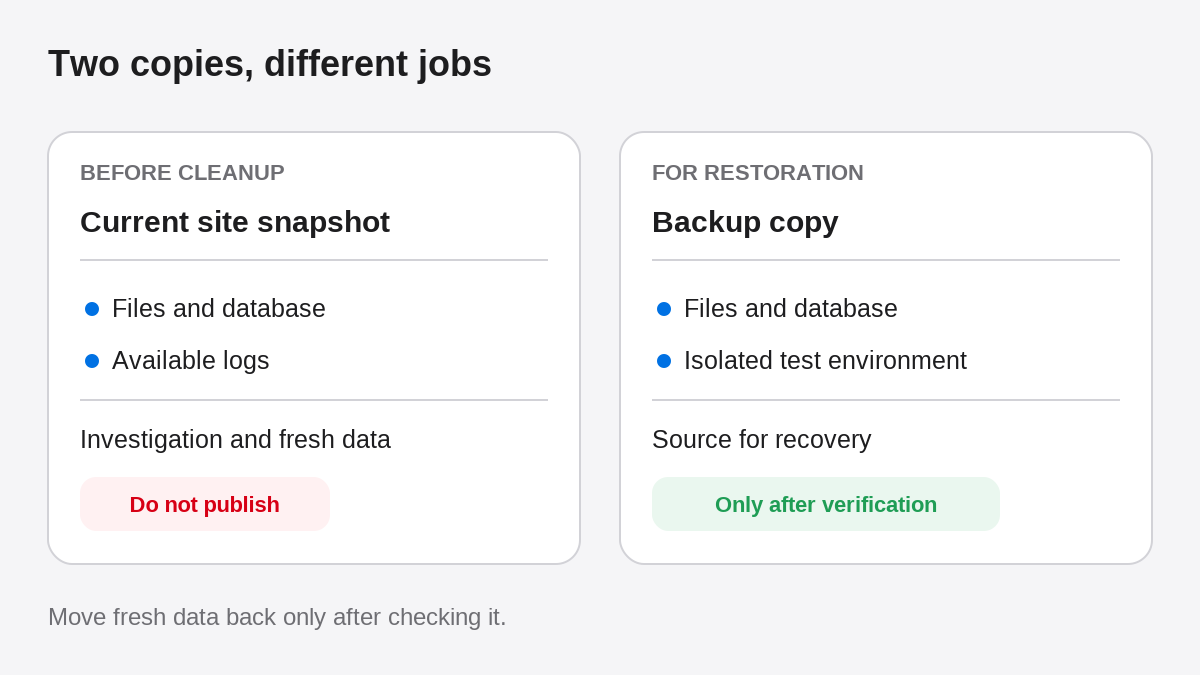
An infected site snapshot and a recovery backup serve different purposes.
Gather information that can help with the investigation:
- When you first noticed the problem, including your time zone.
- Which URLs are affected and what you noticed: spam, redirects, an unfamiliar user, or a browser warning.
- What changed shortly before the issue appeared, such as a theme update, a contractor receiving access, or a site migration.
- The host’s notification and any screenshots you already have. Don’t open dangerous pages just to take new screenshots.
The WordPress guide to recovering a hacked site recommends keeping a record of what happened. That makes it easier to preserve important details across support conversations and recovery attempts.
Before deleting files, save a copy of the site files and database. Ask your host to preserve any available server access and error logs, too. They may contain traces of the attacker’s activity.
A snapshot of the infected site can help with the investigation and preserve recent content. A verified backup is what you use to restore the site. Store the infected snapshot separately, label it clearly, and don’t put it back online as a working site.
You can write to your host:
We’ve found suspicious redirects on the site. Please restrict public access, preserve the files, database, and any available logs before cleanup, and let us know what you found and which sites in the account are affected.
Don’t delay stopping an ongoing attack just to collect perfect evidence. Agree on the urgent steps with your host. If you know that credentials have leaked, revoke them right away instead of waiting for the investigation to finish.
How to investigate a hacked WordPress site
An owner opens the homepage, sees the familiar site, and decides the warning must have been a mistake. But a malicious redirect may appear only to visitors coming from search results or using particular browsers. Opening the site directly doesn’t rule out an infection.
Don’t test suspicious links on your everyday device. Give the URLs to a specialist. An investigation may involve checking Search Console and server responses under different conditions. Google explains how these hidden redirects work.
As the site owner, check who has a WordPress administrator account. Look for unfamiliar users and unexpected changes to existing users’ permissions. Compare the list with the people who actually work on the site rather than deleting every name you don’t recognize. A technical account may belong to a contractor.
A specialist will need to look beyond the user list. That may include WordPress core, plugins, active and inactive themes, child themes, the wp-content/uploads folder, wp-config.php, redirect rules in .htaccess if the site uses that file, and the database. Spam can be stored in posts or site settings, not just in files.
This is a list of areas to inspect, not a reason to delete everything unfamiliar. An external scanner sees the site from a visitor’s perspective, while a file scanner checks the files themselves. One clean report doesn’t prove the site is free of malware.
If the site is connected to Google Search Console, open Security issues. The URLs listed there are examples, not a complete list of infected pages. And if no examples appear, that doesn’t prove there’s no problem.
The investigation should include the surrounding accounts and devices: hosting, email, domain management, connected services, and the computer used to manage the site. Otherwise, you could clean WordPress and leave another route open to the attacker.
WordPress malware cleanup: restore the site and fix the cause
There are usually two options: restore from a clean backup or clean the current site. The right choice depends on the backups available, when the infection began, and how much new content has been added since then.
If you have a backup, test it in a private environment first. A backup made before you noticed spam isn’t necessarily a backup made before the hack. The attacker may have gained access earlier, with visible symptoms appearing later.
You’ll also need to decide what to do with recent inquiries, posts, and other data that isn’t in the backup. That’s one reason to preserve the current site before restoring it. Move recent data back only after it has been checked, not along with everything in the infected database.
If there’s no clean backup, a specialist will need to clean the files and database. Replace components with verified copies from WordPress.org or their original developers. Don’t download a supposedly clean premium theme from the first website you find. That can introduce another problem instead of solving the first one.
Updating WordPress isn’t the same as cleaning it. An update won’t necessarily remove an unfamiliar file an attacker added to a different folder. For the same reason, simply copying files over the existing ones can leave malicious additions in place. WordPress’s Hardening WordPress guide covers general security practices.
Recovery also means finding out how the attacker got in: a vulnerable component, a stolen password, or another confirmed entry point. If you restore the site with the same vulnerability, the backup may only buy you a little time.
In my view, this is usually the point where hiring a specialist makes more sense than experimenting. If you don’t read PHP or understand the server configuration, focus on preserving information, agreeing on a recovery plan, and checking the results. You don’t need to learn malware analysis on your business’s live website.
Secure every account, not just the WordPress admin
Changing your WordPress admin password helps, but it won’t close access through the hosting panel or a compromised email account. Make a list of all the ways into your site and related services: WordPress, hosting, file transfer, domain management, email, your CDN (a service that can route website traffic), and other connected systems.
Change passwords from a device you trust. If your computer is infected, new credentials could leak just like the old ones. Use unique passwords and turn on multifactor authentication wherever it’s available. This adds a second check at sign-in, beyond the password.
There are two stages to securing access:
- Restrict access immediately. Revoke access that clearly doesn’t belong and change compromised passwords to stop ongoing harm.
- Change credentials again after cleanup. Update affected credentials once the environment is clean. Anything entered while the site was infected may have been exposed again.
WordPress recommends changing passwords again after cleanup.
Ask the person handling recovery to end active WordPress sessions, too. One way is to update the security keys and salts in wp-config.php. Don’t edit this file yourself unless you understand the site’s configuration. For example, if you change the database user’s password, you also need to update it in the configuration or the site will lose its database connection.
Finally, remove access that nobody needs anymore. A former contractor doesn’t need a permanent administrator account, and an author doesn’t need permission to install plugins. But make changes thoughtfully. First find out who uses each account and why.
How to check the site after cleanup and address Google warnings
A homepage that loads isn’t enough to show that recovery is complete. After cleanup, you need two different checks: a technical review for remaining signs of infection and a functional check to make sure the site still does its job.
The specialist should recheck affected areas, look for known symptoms, and check for possible remaining ways in. You can go through the functional checks together:
- Key pages load at the right URLs.
- Navigation and the mobile version work.
- Forms submit, and test inquiries reach the intended recipient.
- The redirects you previously saw no longer appear during technical testing.
- Posts and settings don’t contain suspicious additions found during the investigation.
- Approved users still have the access they need, and unauthorized users don’t.
This list checks whether the site works. It doesn’t replace a security investigation. A working form, for instance, doesn’t prove there are no hidden malicious files.
If Google showed a warning, request a review through Search Console after fixing all reported issues. Explain what you found, what you did, and how you checked the results. Fixing only a few URLs in the report isn’t enough. The problem needs to be resolved across the site.
According to Google’s documentation, reviews can take anywhere from a few days to a few weeks. Don’t expect a warning to disappear as soon as the cleanup is done, and don’t submit another request while the current one is under review.
Ask the person who handled the recovery to leave a short summary: what they found, what they replaced, which credentials they revoked, what cause they addressed, and what remains unknown. An honest note that they couldn’t confirm the entry point is more useful than an unsupported claim that everything is resolved. Once the site is back, save a new verified backup separately from the infected snapshot.
Set up maintenance that doesn’t depend on the owner having a free evening
Reducing the risk of another hack takes more than one security plugin. It takes a few ongoing habits, each with someone responsible for keeping them up. You can keep using WordPress, but updates, backups, and access reviews need to be routine work, not a response to the next email from your host.
A practical baseline:
- Update WordPress, the plugins you need, and your themes, checking for compatibility. Delete components you no longer use instead of keeping them for years just in case.
- Get components from trusted sources. Don’t install pirated paid themes or plugins. If a component is no longer maintained, find a supported replacement.
- Give each person only the permissions they need. Use unique passwords and a second sign-in check. For file transfers, choose SFTP, a secure way to connect.
- Back up files and the database. Keep a separate copy outside your main hosting account, and test restoring it in a private environment.
- Pay attention to messages from your host and Search Console, and to unexpected changes in users or files.
How often you back up depends on how much data you can afford to lose. A brochure site that rarely changes and a blog with daily posts call for different schedules. Check what you can restore and who will do it, rather than just whether backups are turned on.
Assign a specific person or contractor to receive alerts and handle maintenance. Make sure notifications go to an email address someone still checks. Technical safeguards don’t help much if the warning sits in a former employee’s inbox for a month. Our website maintenance guide covers the practical side of maintaining a site.
If you have reason to suspect that customer data was exposed, don’t stop at cleaning the site. You’ll need a separate assessment of what data was affected and whether you have notification obligations. Talk to a qualified professional. A general WordPress checklist can’t answer that for every situation.
When to keep WordPress and when to consider a static site
After recovery, ask a simple question: which WordPress features does your site actually need? Think about your everyday work, not what the platform can do in theory.
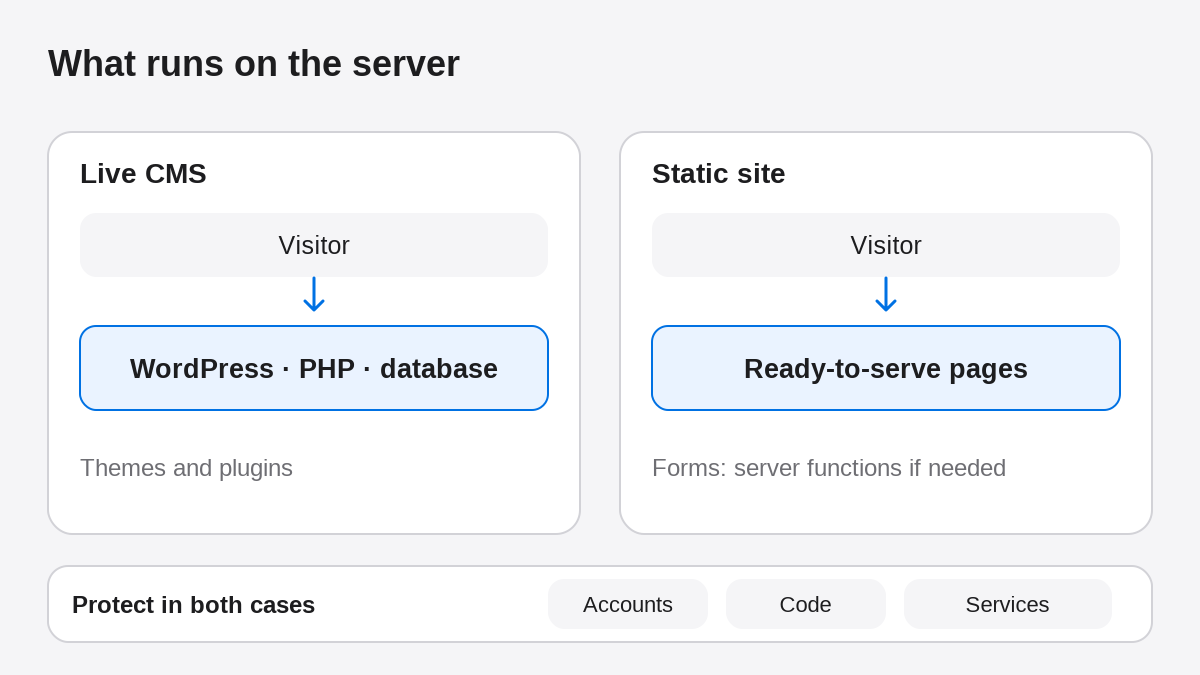
A static site removes the live WordPress installation from the public server, but other components still need protection.
If editors use the familiar dashboard every day, your publishing process is complex, or key features depend on plugins, keeping WordPress and maintaining it may be the most sensible choice. A hack alone doesn’t mean you have to switch platforms.
But if your site is for a service business, a portfolio, or a small blog, a live CMS may be an unnecessary part of the setup. A static site serves pages that have already been prepared, without running WordPress on the public server. That removes WordPress and the maintenance tasks tied to it, but it doesn’t make the site invulnerable.
At Statico, we move sites like these to static Astro projects. On a static architecture, there is no PHP engine to execute uploaded webshells and no database to inject queries into or leak credentials from. Forms process inquiries through isolated serverless functions, removing the web server from the attack surface entirely. For later copy changes, Statico Atelier lets you update content in a Git branch without keeping an administrative dashboard exposed on a live server.
You’ll still need to secure access to your domain, email, and Cloudflare, as well as the site’s code and connected services. And an online store with a cart, payments, and customer accounts isn’t a routine brochure-site migration. Those features need a separate solution.
Migration doesn’t replace investigation and cleanup. Moving unchecked content can carry over a malicious addition hidden in a page’s text. First regain control of the site and check its content. Then choose the right setup for the future.