 Statico
Slow website? How to fix Core Web Vitals
Pinpoint what slows down your pages—from unoptimized images to heavy CMS scripts—and decide which Core Web Vitals fixes actually improve load speed.
If your website is slow and PageSpeed Insights says it fails Core Web Vitals, don’t rush to buy a new hosting plan or install another speed plugin. First, find out what’s actually slow: the server takes too long to respond, the main image appears late, the menu doesn’t react when tapped, or the page shifts while someone is reading. These are different problems, and they need different fixes.
It’s also worth asking whether your site still needs WordPress. Sometimes the right move is to fix the current setup. Other times, it makes more sense to stop maintaining a CMS you barely use. A red report alone isn’t a reason to migrate.
What failed: a load test or the experience of real visitors?
PageSpeed Insights shows two different kinds of reports side by side. Field data shows how the site performed for real visitors. The Lighthouse lab test checks a page under set conditions and helps you investigate what might be causing problems. That’s why you can see a good performance score and a failed Core Web Vitals assessment on the same screen. Google explains the difference in its guide to measurement tools.
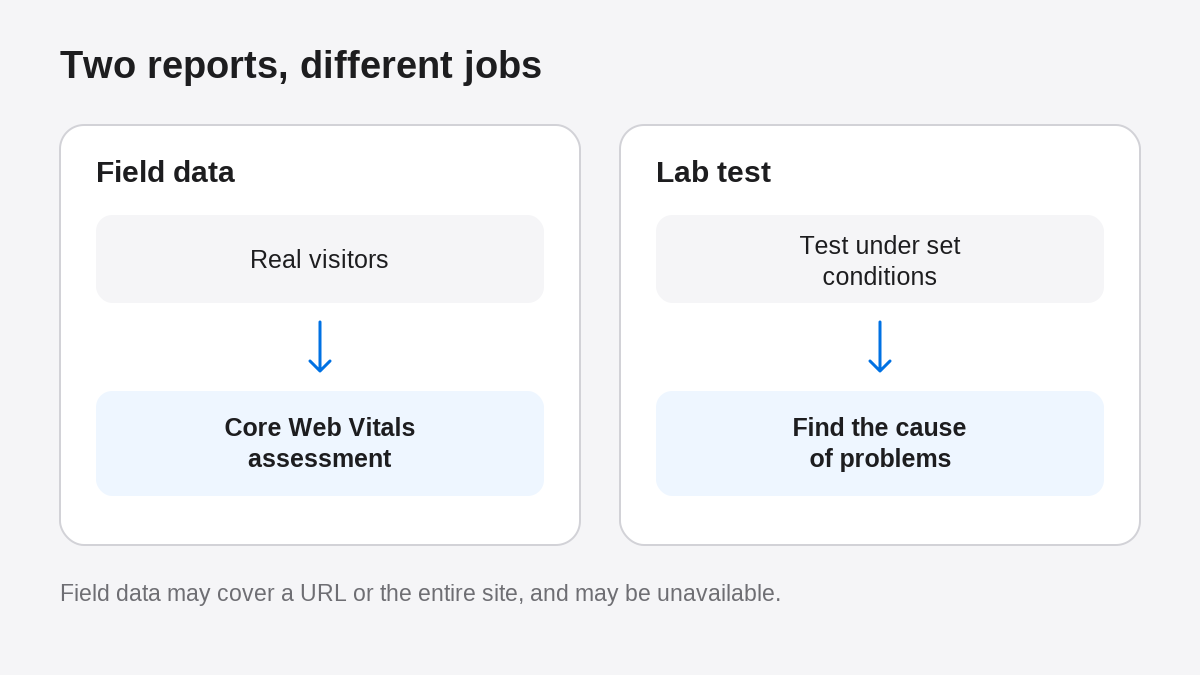
Lab tests help you investigate causes, but they don’t replace data from real visitors.
Core Web Vitals are three metrics:
| Metric | What visitors experience | Good score |
|---|---|---|
| LCP | The main content appears without a long wait | 2.5 seconds or less |
| INP | The page responds quickly after a tap or click | 200 milliseconds or less |
| CLS | Elements don’t shift unexpectedly | 0.1 or less |
These are Google’s thresholds. To pass the assessment, the metrics must meet the thresholds at the 75th percentile, separately for mobile and desktop. Put simply, at least 75% of measurements for each metric need to be good, not just one successful test on your computer. If there isn’t enough data for INP, the assessment may rely on LCP and CLS.
Also check what the field data covers: the URL you tested or the whole site, known as the origin, which combines the protocol, domain, and port. If there isn’t enough data for a specific page, PageSpeed may show broader site-level data instead. Don’t compare that directly with a lab test of one page. And if there’s no field data at all, that doesn’t mean the page failed. There may simply not be enough data yet.
Check your website speed before changing anything
Before adjusting settings, write down what isn’t working and where. Otherwise, you can spend an evening flipping switches and still have no idea whether they helped.
I’d start with a few different page types rather than testing every URL: the homepage, a service page, a blog post, and the contact page. They may use different images, templates, and scripts. A homepage with a slider doesn’t represent the whole site, and a lightweight contact page doesn’t prove everything is fine.
For each URL, note:
- Whether you’re looking at the mobile or desktop report
- Which metric failed
- Whether the field data covers that URL or the whole site
- Which element Lighthouse identified as the LCP element
- What you notice during normal use, such as a delayed menu, a late image, or a shifting form
Check the site while logged out of WordPress. An administrator may get a different version of a page from a regular visitor, for example, a version without page caching. Don’t rely only on reopening a page that has already loaded on your fast computer, either.
Before making changes, back up the site. If possible, test plugin deactivations and theme changes on a staging copy. Change one thing at a time and record the result. After each change, check the report and test the menu, contact form, search, and any other important actions. Our website maintenance guide covers other basics for keeping a site in good shape.
You can then give a developer a specific task: find out why the main image on the service page starts loading late, for example.
Poor LCP: separate server delays from content delays
LCP measures when the largest visible element appears. Often, that’s a hero image or a large block of text. But the same LCP score can have different causes.
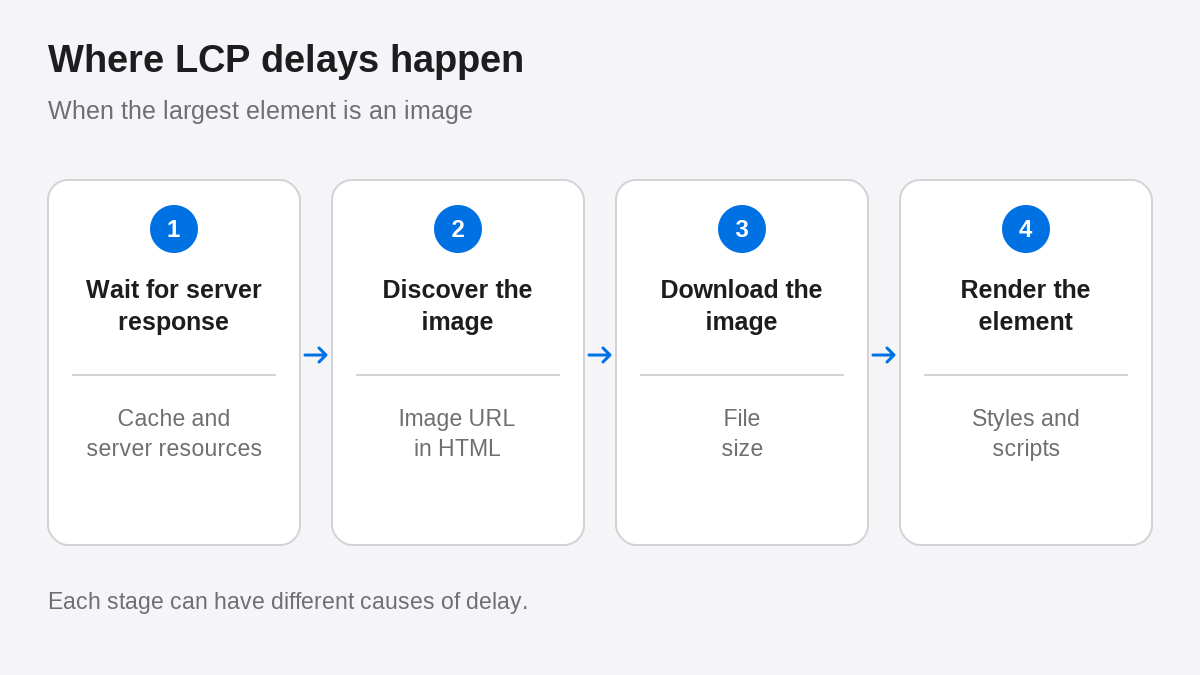
Find the stage causing the delay first. Fixes for the server and the image are different.
If the browser waits a long time for the first server response, look at the server side. Is page caching enabled? Does a plugin perform expensive work every time someone opens the page? Does the hosting plan have enough resources? A slow server response is often called high TTFB, or time to first byte.
If the HTML arrives quickly but the main image appears much later, a more expensive server may not change anything. Check the image itself and how the browser discovers it:
- Is the page loading a huge original file when a smaller image would do?
- Is the image URL in the original HTML, or does a script add it after the page loads?
- Is lazy loading enabled for the image at the top of the page?
- Does the browser have to wait for styles to load or JavaScript to run before it can display the image?
That’s why the advice to turn on lazy loading for every image can backfire. Lazy loading helps with images below the visible area, but not with the main image visitors are waiting to see.
Google’s recommendations for improving Core Web Vitals cover making the LCP image discoverable in the HTML, avoiding loading="lazy" for that image, and raising its priority with fetchpriority="high". Don’t apply that priority to every image. It’s useful when an important resource needs to stand out from the others.
If a large image is set as a CSS background, the browser may discover it later. Preloading it may help, but confirm the cause first. Reducing the file size won’t fix late discovery, and raising its priority won’t make a large file smaller.
Poor INP and CLS: caching isn’t the main fix
INP: you tap, but nothing happens
A page can appear quickly and still feel sluggish to use. You tap the menu, and it’s slow to open. You choose a filter, and the interface freezes. That’s a responsiveness problem, measured by INP.
Start by checking JavaScript: code from the theme, page builder, widgets, analytics, and ads. The amount of code matters, but so does what it does. A script can keep the browser busy with calculations or page updates, preventing it from responding to an action.
It may help more to remove an unnecessary widget or stop loading its code on every page than to simply combine files. Remove analytics tags you no longer use instead of endlessly delaying their execution. A developer can look for long tasks that block the browser and break necessary work into smaller pieces, as described in Google’s INP recommendations.
Be careful with settings that delay all JavaScript until the first interaction. They may improve a load test but leave visitors waiting after their first tap. Test the actual menu and form, not just the score.
A standard Lighthouse load test without interactions doesn’t measure INP. Its TBT metric can help you find blocking code, but it doesn’t replace field INP data.
CLS: the page moves under your finger
You’re about to tap a link, but an image appears above it and shifts everything down. That’s a visual stability problem.
Check whether the page reserves space for images, videos, and embedded content. See if a banner appears above text that’s already on screen. Watch for font changes and animations that resize elements or move nearby content.
Google recommends reserving space for content before it loads. A faster server might make a shift less noticeable in one test, but it won’t fix missing image dimensions. Check the page while scrolling and interacting, not just when it first opens.
What’s worth fixing to speed up a site?
Caching can help, but people use the word cache to describe different things.
Page caching saves finished HTML. Instead of building the page with WordPress each time, the site serves a prepared version. For a public-facing services site, this is often a useful first thing to check.
Persistent object caching saves the results of certain operations, including database queries, across requests. It can reduce server work, but it isn’t the same as serving a finished page. WordPress explains the difference in its official performance optimization guide.
Before installing a caching plugin, find out what your hosting provider already does. It may offer server-side page caching, object caching, and a CDN, a network of servers that delivers resources closer to visitors. Some CDN settings cover only images, styles, and scripts. Others can cache HTML too. Seeing a CDN listed in your plan doesn’t tell you how your pages are being served.
Next, check the theme and plugins. There’s no universal maximum number of plugins. What matters is what they do and where they load their resources. A contact form plugin may be needed on the contact page, but its scripts don’t necessarily need to load on every blog post. A heavy theme won’t become lightweight just because you remove a few small plugins.
Upgrading hosting can make sense when you see resource limits or slow server processing. It won’t fix a shifting layout or remove unnecessary code from visitors’ browsers.
Cached pages shouldn’t accidentally show someone else’s private information. If your site has accounts, a cart, or personalized pricing, check the caching rules separately.
Static site vs WordPress: does this site still need a CMS?
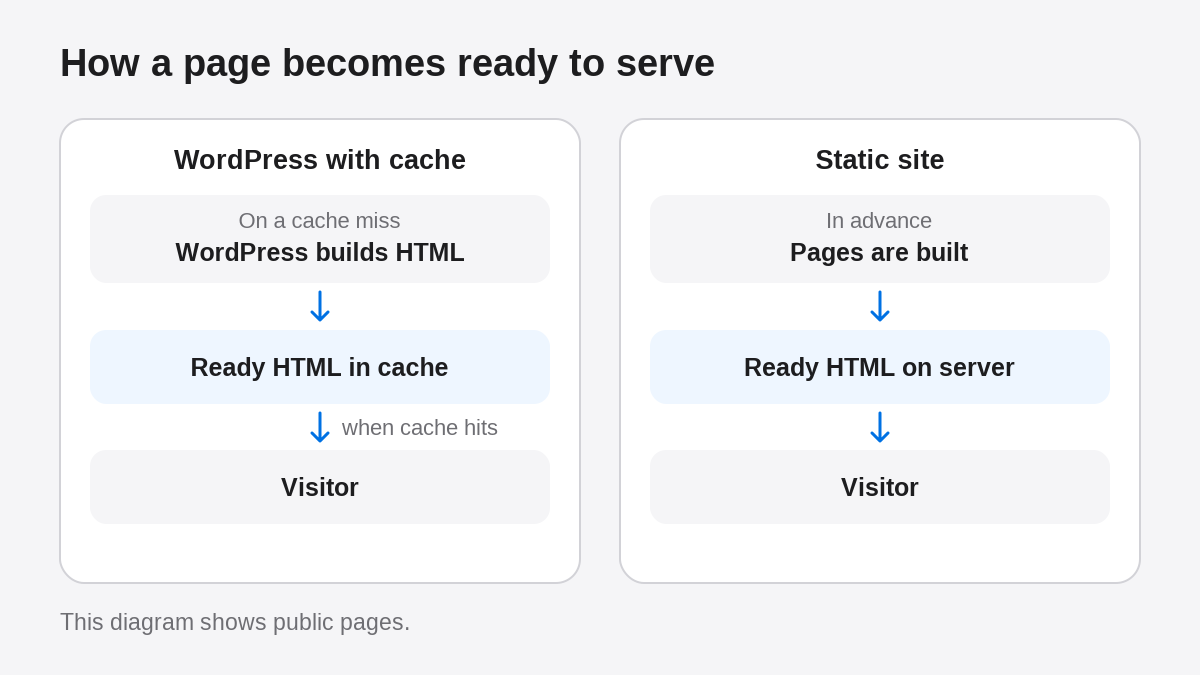
Page caching and a static site both serve finished HTML, but prepare it in different ways.
If your editors publish regularly, review content together, use familiar fields, and rely on specific plugins, the admin dashboard may be genuinely useful. If you run subscriptions, member accounts, or a complex store, moving away from a CMS will take a separate development project, not a simple page migration.
But some sites just need to show services, prices, articles, and contact details, and collect inquiries. They may not need a system that builds pages from a database whenever someone visits. A static site stores pages that have already been prepared and serves them without building them on demand. That doesn’t mean it can’t have a form, search, or calculator. Those features can use separate tools.
WordPress page caching solves a similar problem by serving a finished page instead of building it again. If caching works well and your team likes the CMS, there’s no need to leave WordPress just to improve response time.
Before deciding, list the features you rely on: forms and where they send inquiries, search, comments, logins, personalization, a cart, payments, and third-party integrations. Then write down who updates the content and how. Infrequent text changes don’t necessarily mean a site is simple, and frequent updates don’t rule out a static approach.
In my view, keeping a CMS for a small brochure site just because someone installed it years ago is a weak argument. But taking away a convenient editor just to get a better report isn’t right either. Compare how you’ll work with the site in the future, not only its load metrics.
If you move away from a CMS but still want a way to update your site without editing code, our Statico Atelier lets you describe a change in plain language, review it in a preview, and publish it when it’s ready.
How to check the result and choose your next step
After making a change, a lab test can help you quickly check whether you’re heading in the right direction. Field data updates differently. PageSpeed uses data from the previous 28 days, so the report may still include visits from before the fix. Don’t expect the status to change immediately, and don’t treat any specific day as a guaranteed deadline for passing.
Good Core Web Vitals don’t guarantee top search rankings. A failed assessment doesn’t prove that it caused a drop in traffic, either.
At Statico, we move WordPress sites to static Astro projects deployed to a global edge CDN. Because HTML pages are generated in advance during the build, the server doesn’t spend time querying a database or executing PHP on every request. Pages are served directly from the nearest edge location, which significantly cuts Time to First Byte (TTFB) and helps LCP.
A migration alone doesn’t guarantee that a site will pass Core Web Vitals. Heavy third-party scripts or an unstable layout will still need attention. First identify the cause, then decide whether to repair the current setup or simplify it.